Lead to Crew Voice · Help
Make your first call with confidence.
A step-by-step guide to using your own Twilio business numbers from your everyday phone.
Getting started
- Create your Voice account and choose a plan. If you received a complimentary invitation, use that link instead. You still need your own Twilio account and pay Twilio for usage.
- Connect Twilio in Voice setup. The expandable guide below explains exactly which credentials and API-key permissions to use. Keep your credentials private.
- Save your defaults. Load your Twilio numbers, choose a US, Canadian or Australian business number, and save the phone you want us to ring first. Choose the correct country for that phone.
- Open Calls & texts. Check the business-number dropdown before calling or texting. Switching numbers also changes the history you see.
- Try a call with someone expecting it. Answer your phone and press 1 to connect. You can choose recording before starting the call.
Twilio setup instructions & API key permissions
Follow these steps in a second tab, then enter the four credentials in your Twilio connection form. Use the same Twilio account throughout.
Set up Twilio with ChatGPT or Claude
Copy this prompt into an assistant with browser or screen control. It can create your key, check the permissions, and fill in the connection form. You handle sign-in and any steps its tools cannot complete.
View or manually copy the prompt
Open the correct Twilio account
Select the account that owns your phone numbers. Open Settings → Account settings → API keys & auth tokens. In the older Console, look under Account → API keys & tokens. Choose United States (US1), even if you live in Canada or Australia. US1 is the Twilio processing region Lead to Crew connects to, not your location or the country you want to call. Do not select Australia (AU1) for this connection.
Collect the account details
Find Account SID and Auth Token on the account home page or the Auth tokens tab. The Account SID starts with AC. The Auth Token is different from the secret you create in the next step.
Create a dedicated API key
Open the API keys tab and choose Create API key. Give it a recognizable name, such as Lead to Crew. Use region US1 and key type Restricted, so you can choose the permissions below.
Already have a Restricted key dedicated to Lead to Crew? Open its name, then Permissions → Edit. Editing permissions does not require replacing the key or its secret.
Select these permissions
Expand each group and check the actions on the individual resource row. List loads a collection; Read opens one item; Create starts a call or sends a message. Avoid selecting the entire parent group.
Existing Voice users: add Calls Read and Recordings List if your key was created using the older guide. No new phone number, Twilio Function or routing change is required to browse recordings.
Recording tip: choose Voice → Recordings → recordings → Read and List. The separate Calls → calls.recordings row is not a substitute.
These permissions cover standalone Voice. If the same key also serves your organizations, keep the extra permissions needed by their incoming-call, recording-history and routing features.
Save the new key or click Save after editing permissions. Reopen Permissions and verify your selections persisted. If you have a Standard key, it has broader permissions and does not use this checklist; a dedicated Restricted key is recommended.
Copy the key details into Lead to Crew
Twilio shows the new key’s secret only once. Keep that page open until the connection succeeds. Copy these values into the matching fields:
Click Connect Twilio. Keep secrets out of screenshots, messages and website code. If you lost the API secret, Twilio cannot show it again; create a replacement key and update this connection before retiring the old key.
Choose your Voice defaults
Under Your Voice defaults, click Load / refresh Twilio numbers, choose your default business number, enter your personal receiving phone, and save. On Calls & texts, the number dropdown chooses which line you use.
A successful connection confirms that we can load numbers. It does not prove that every calling, messaging or media permission is enabled.
Calling and texting in Canada or Australia
In Twilio, open Voice → Settings → Geo permissions and enable low-risk calling for your personal receiving phone’s country and your customer’s country. These country permissions are separate from your API key’s US1 region.
Use an upgraded Twilio account with a US, Canadian or Australian voice-enabled number. For texting, choose an SMS-capable number and separately enable the recipient country under Messaging → Settings → Geo Permissions. Select Canada or Australia for your personal receiving phone in Your Voice defaults. Your Twilio account pays for both call legs. Canadian and Australian calling and texting are a pilot; confirm delivery, audio and the press-1 step with an agreed test call.
Country setup, texting, costs and troubleshooting
Connected, but a feature is not working?
- Numbers missing: check the account, US1 region and active-numbers List permission.
- Calls fail: check calls Create, a voice-capable number, account balance, calling permissions for both the customer’s and your receiving phone’s countries and any trial restrictions. The account Auth Token is also checked before calling.
- History or photos fail: check the matching List and Read permissions above.
- Texts fail: check messages Create, an SMS-capable number and the number’s applicable A2P/toll-free registration. API permissions do not replace messaging registration.
- Incoming messages: Voice currently retrieves replies with Refresh. Automatic inbound delivery/screening has its own setup; connecting a key does not replace existing Twilio or Make routing.
- Calling awaits setup: a secure callback address must be configured by Lead to Crew. A different API key will not fix that server setting.
No Twilio Function or Studio Flow is needed for the outbound press-1 bridge. The Auth Token remains a sensitive account credential even when the API key is Restricted.
Reference: Twilio’s Restricted API key documentation. Console labels checked October 5, 2026.
What the words mean
- Business number
- Your selected Twilio number. Customers see this number when you call or text.
- Bridge phone
- Your everyday phone. We call it first, then connect you to the customer after you press 1. You do not talk through your computer microphone.
- Recipient
- The person you want to call or text. Choose a US, Canadian or Australian number.
- Call legs
- The two parts of the connection: a call to your phone and a call to the customer. Twilio charges for both.
- API key
- A credential that lets Voice perform the actions you permit in your Twilio account. The key secret is shown once when created. Store it securely, never in website code or screenshots.
Calling and texting in the US, Canada and Australia
Voice accepts business and customer numbers in all three countries, including Canadian businesses contacting Canadian customers and Australian businesses contacting Australian customers. Canada and Australia are a pilot pending real carrier tests.
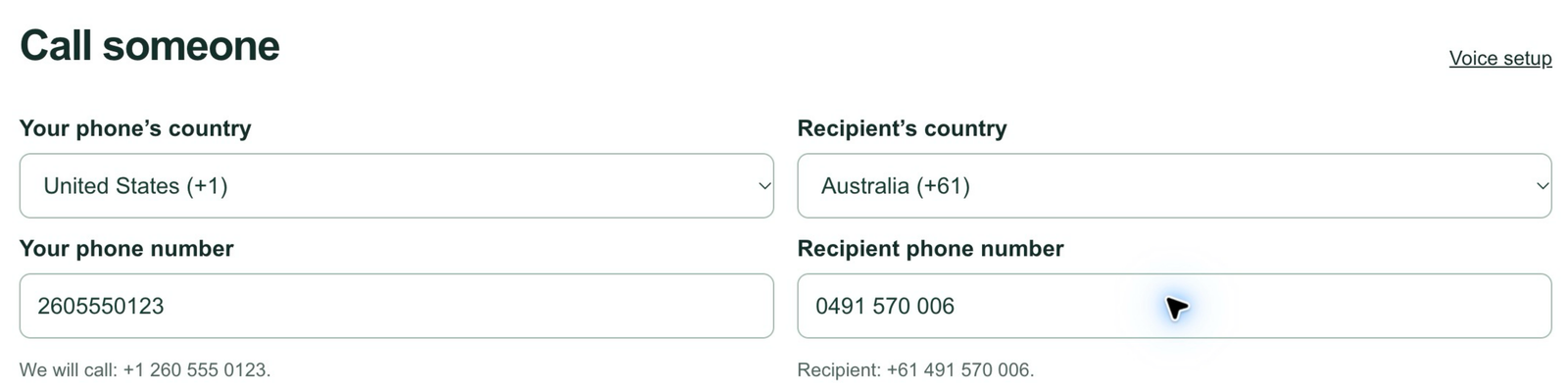
- Connect your own Twilio account. Follow the Voice setup guide. Use US1 credentials even for Canadian or Australian numbers. US1 identifies the API region, not the number’s country. Existing Voice API permissions still apply; no new Twilio Function is needed.
- Choose a capable business number. In Twilio, open Phone Numbers → Manage → Active numbers. Check Voice for calling and SMS for texting. An Australian voice-only landline cannot send texts; use an SMS-capable Australian number for two-way messaging. Complete any identity, address or messaging registration Twilio requires for your number and destination.
- Allow call destinations. Open Twilio Voice → Settings → Geo permissions. Enable low-risk calling for your receiving phone’s country and the customer’s country. For an Australian-to-Australian bridge, enable Australia. For an Australian bridge calling a US customer, enable both Australia and the United States.
- Allow text destinations separately. Open Twilio Messaging → Settings → Geo Permissions and enable the customer’s destination country. Voice permissions do not enable texting. Canadian and Australian domestic two-way SMS are supported by Twilio; international routes remain subject to Twilio and carrier rules.
- Save your defaults. Open Voice setup, select your everyday phone’s country, enter the number and choose a default business number. In Voice, choose the recipient’s country when starting a call or new text. Australia accepts local numbers starting with 0 or full +61 numbers; Canada and the US both use +1, so choose the correct country.
- Run an agreed test. With someone expecting it, test a text, their reply and Refresh in Texts. Then test a call: answer your bridge phone, press 1, confirm both people hear each other and check the caller ID. If recording is selected, obtain everyone’s consent and check the Recordings tab after processing. Check contact names and follow-ups with the same recipient.
Costs: Twilio bills your account for both call legs, messages and any recordings at the applicable rates. Your mobile provider may charge for receiving calls or roaming. A Lead to Crew trial does not provide free Twilio usage. Use a funded, upgraded Twilio account for the pilot; Twilio trial restrictions may prevent tests.
Troubleshooting country setup
Missing number: check account ownership, active-numbers List permission and number capabilities. Call fails: check balance and both Voice destinations. Text fails: check Messaging Geo Permissions, SMS capability, registration and the message log. A queued or sent status is not proof of delivery. Review Twilio Monitor → Logs before retrying an uncertain call or message.
Twilio SMS geographic permissions · Twilio calling geographic permissions · Canada SMS requirements · Australia SMS requirements
Make a call
- Choose the business number at the top, then open Calls.
- Select the customer’s country and enter their number and confirm your bridge phone.
- If you want a recording, select it and confirm the required consent before calling.
- Start the bridge. Your phone rings first. Answer and press 1; then the customer’s phone rings.
- After hanging up, use Refresh calls to see the latest status and time.
Connecting Voice does not change your incoming-call greeting, forwarding or voicemail in Twilio. Call history may show separate entries for the two call legs.
Send a text and read replies
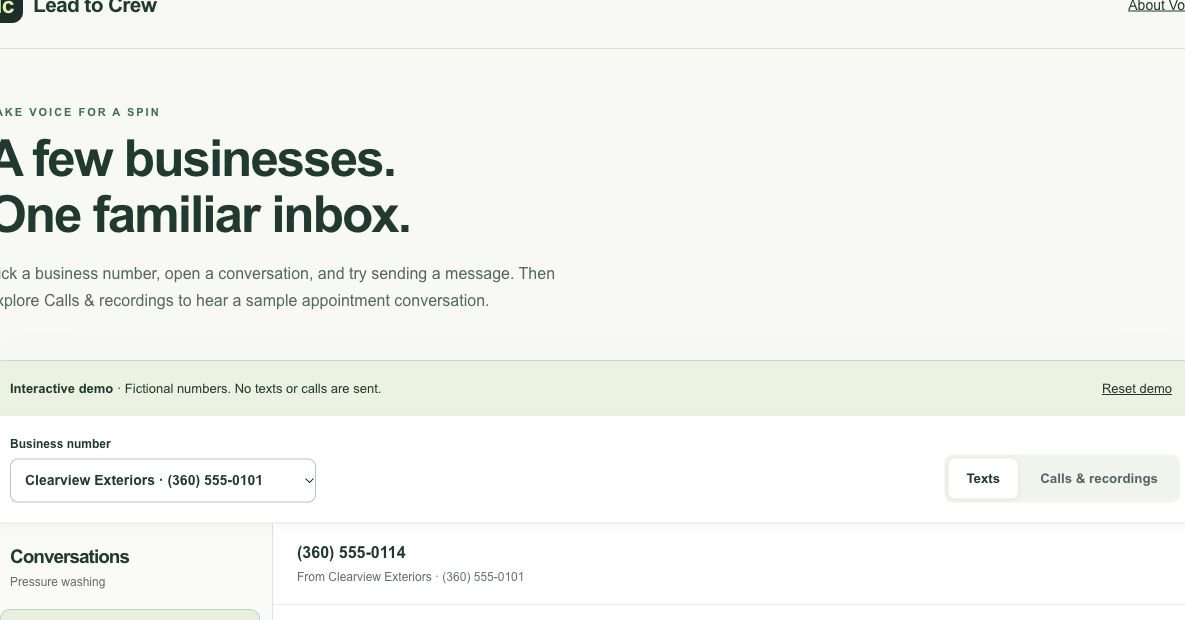
- Top dropdown: choose the line you want the message to come from.
- Conversation list: select a phone number, or choose New text to enter a US, Canadian or Australian recipient.
- Message box: type your message, confirm the recipient agreed to receive texts, and send. Outgoing bubbles appear on the right; replies appear on the left.
- Refresh: retrieve the latest replies. On mobile, use Conversations to return to the list. Click an incoming photo to enlarge it.
Your Twilio number must support SMS and have any required messaging registration. The optional test-text tool accepts recipients in the US, Canada and Australia. Enable the destination country in Twilio Messaging Geo Permissions. The test is optional for calling.
Contact names
Account owners and paid Voice subscribers can add or edit a contact name from a conversation or the Contact / number column in Voice follow-ups. Choose Add a Contact Name or Edit Contact Name, enter the name and save. Leave the field blank to remove it. You can search conversations by name or phone number.
For account owners, a matching lead in the organization assigned to the selected business number takes precedence over a saved Voice name. The phone number remains visible. If multiple leads have conflicting names for that number, Voice uses your saved name instead. Editing in Voice changes only the saved Voice name, not the lead. Names belong to your Voice account and selected business number. They do not create organization customers or change Twilio. Lead to Crew saves the name with a keyed matching identifier, not a separate plain-text recipient phone field. Names are personal data. For Voice-only trial or complimentary accounts, these buttons open an upgrade explanation with a link to Voice billing. The features unlock once subscription payment is confirmed. Review your plan.
Manual text follow-ups
Follow-ups are included for account owners and paid Voice subscribers. Voice-only trial and ongoing complimentary access do not include them. Review your plan.
- In Voice, choose a business number and an existing conversation. You can also choose Write text follow-up on a call.
- Write the message, choose Save follow-up, and enter a title and due date in your local time. Saving does not send a text.
- When you return, open the Follow-ups tab beside Texts, Calls and Recordings. Upcoming, Past due and Completed tables show the recipient number retrieved from Twilio, full message, due date and days remaining. Past-due rows are highlighted.
- Choose Load draft to open that contact’s conversation in a modal without leaving Follow-ups. Review the sending and receiving numbers, read the conversation history, and use Load older messages to retrieve earlier messages still available in Twilio. Edit your draft, confirm SMS consent, and press Send text. After Twilio accepts the message, choose Mark complete. Closing the modal leaves the reminder pending. Use Edit to change the draft or due date, or Delete to remove a reminder. Completed reminders show their completion date.
Lead to Crew stores reminder titles, drafts and dates plus Twilio record IDs. It retrieves the recipient from Twilio when you open the reminder. Drafts can contain personal details you enter. If the original record or its phone details are removed in Twilio, automatic recipient lookup is unavailable. This feature does not schedule messages or send reminder notifications.
Listen to a recording
Choose your business number, then open Recordings. The recent Twilio call table shows date, time, saved contact name, phone number, status and duration. Incoming and outgoing calls are listed, including calls made outside Voice. Choose Check recordings to inspect the call and its connected legs, then press Play, use the waveform to seek, or choose Download MP3. The view includes up to 50 incoming and 50 outgoing calls for the selected number. Connected legs may appear as separate rows. Twilio Calls Read/List and Recordings Read/List permissions are required; update them using the guide on Voice setup. Recording is optional; not every call has one. Allow time for Twilio to finish processing after a call.
The interactive demo has separate Calls, Recordings and Follow-ups tabs and includes fictional sample audio you can try before connecting your account.
Something not working?
My phone does not ring
Check the bridge country and number, Twilio account balance, calls Create permission, and Voice geographic permissions for both destinations. The Canada/Australia section above has the international checklist. Check Twilio’s call log for an error before retrying.
I cannot see numbers, messages or photos
Make sure you connected the account that owns the number. Use the API-key permissions guide above to check the relevant List and Read permissions, then refresh. A successful connection alone does not verify every feature.
A text did not arrive
Check its status and Twilio message log. Your number needs SMS capability, the messages Create permission, sufficient balance and the applicable registration. A sent status does not guarantee delivery.
Voice access is paused, or I need to change my plan
Open Voice billing to review your status and available actions. Complimentary members should contact the person who invited them. Help remains available while Voice access is paused.
Need a hand? Email support@leadtocrew.com with what you tried, the time and any error message. Never include API secrets, auth tokens or passwords.