Browser & headset calling
Simple setup is the default. Enter your Account SID and Auth Token. Lead to Crew creates the API key and configures browser calling for Voice-enabled accounts. No manual permission checkboxes or callback addresses are needed.
Open your setup tabs
1. Find your two account details
- Sign in to Twilio and select the account that owns your business phone numbers.
- Open the account home page: Account Dashboard in the older console or Home in the newer console.
- Find Account SID (starts with AC) and Auth Token. Copy them directly into the matching Lead to Crew fields. Do not reset or rotate the token.
If you cannot find the token, use the Auth tokens tab on the API keys page. The advanced pictures below show both Twilio console menus. Complete any verification code directly in Twilio.
2. Connect with Simple setup
- In Voice setup, find Communications · Twilio. Leave Simple setup selected.
- Enter Account SID and Account auth token.
- Read the storage explanation, then click Connect Twilio. Keep the page open while setup finishes.
- Wait for the success message. Load your Twilio numbers under Your Voice defaults and save the business number you want to use.
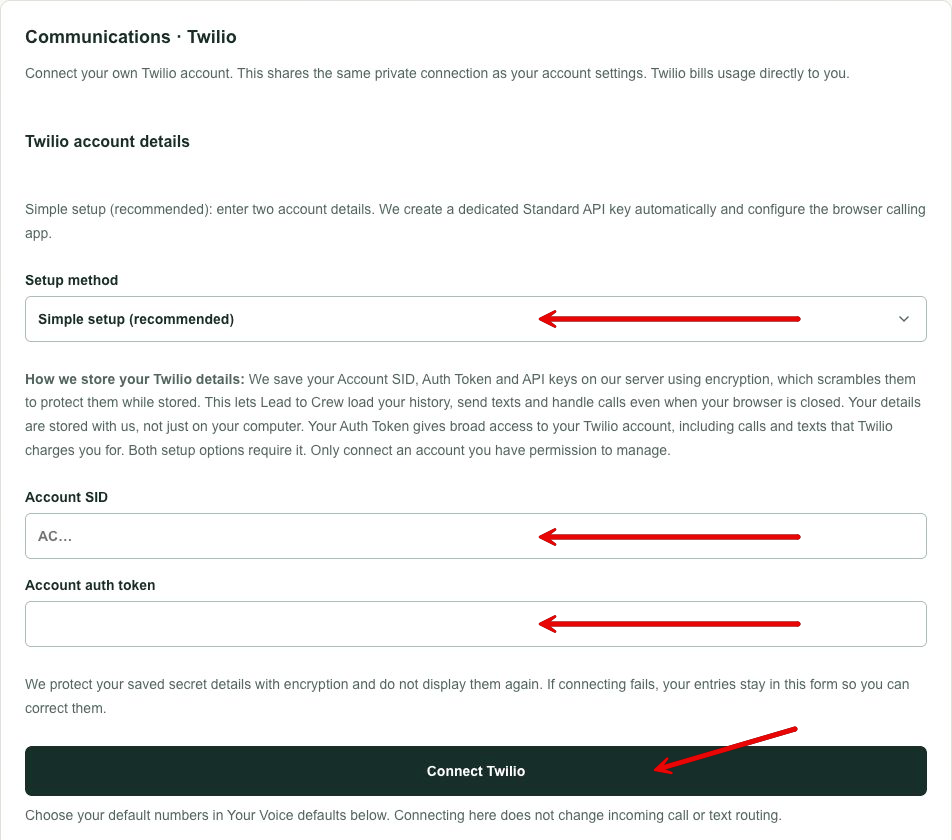
What is stored, and why?
We save your Twilio account details and API keys on our server using encryption, which scrambles them to protect them while stored. We need them to load your history, send texts, handle calls and check that updates really came from Twilio—even when your browser is closed. These details are stored with us, not just on your computer. Your Auth Token gives broad access to your Twilio account, including calls and texts that Twilio charges you for. Both setup options require it.
Simple setup creates a dedicated Standard API key in US1 and a dedicated browser calling app for Voice-enabled accounts. A Standard key has broad API permissions except account and key administration. Existing keys and incoming call/text routes are left in place. Connecting does not buy numbers, enable geographic calling permissions or complete A2P/toll-free registration.
Disconnect removes the active Lead to Crew connection, but does not close your Twilio account or revoke keys there. Review and revoke dedicated keys in Twilio when no longer needed. The key created by Simple setup powers both regular features and browser calling; revoking it stops both. Do not revoke keys shared with another integration.
3. Try your phone or headset
- Open Calls & texts and choose your business number.
- For headset calling, open Calls → Use browser & headset, enter a number you control or someone expecting the test, and choose Call from browser.
- Allow microphone access. Confirm caller ID and audio both ways, then end the call. Keep this tab open while using browser audio.
- For Call my phone, save your personal receiving phone, answer it and press 1 to connect.
Already connected using an older/manual setup? In Voice setup → Call from your browser, click Enable browser calling automatically. If it is already configured, keep your existing setup.
Optional: receive calls in this browser
On Calls & texts, choose a business number and turn on Receive calls in this browser. Select a duration and keep the page open. Unanswered calls continue to the saved normal flow after about 10 seconds; turning receiving off restores the saved route. Browser answering bypasses your normal screening/AI flow for that call. Connecting alone does not turn receiving on.
Twilio bills call usage separately, including both the browser connection and customer phone call. Balance, trial limits, destination-country permissions and texting registrations still apply.
Advanced: use your own keys
Choose Advanced in the connection form to supply a dedicated API key SID and secret along with Account SID and Auth Token. The Auth Token is still stored encrypted on our server and still has broad access. Manual setup lets you choose the key and permissions; it is not local-only or an Auth Token-free connection.
Open manual setup instructions and Twilio screenshots
Add browser & headset calling
Optional: connect Twilio first. This guide only adds headset calling. Already see your business numbers in Lead to Crew? Continue below. Otherwise, complete Connect Twilio — start here before creating this separate browser key.
Keep this guide open in one tab and Twilio in another. The pictures show where to click. Select any picture to make it bigger. You do not need to write code.
Twilio has two console designs. If you see Admin at the top, use the older-console instructions. If you see a small gear on the left, use the newer-console instructions. Your account may open either one.
Open your setup tabs
1. Find your API keys page
Sign in to Twilio. Choose the account that owns the business phone numbers you want to use. Your account name will be different from the pictures.
I see “Admin” at the top
- Click Admin near the top-right corner.
- Choose Account management from the menu.
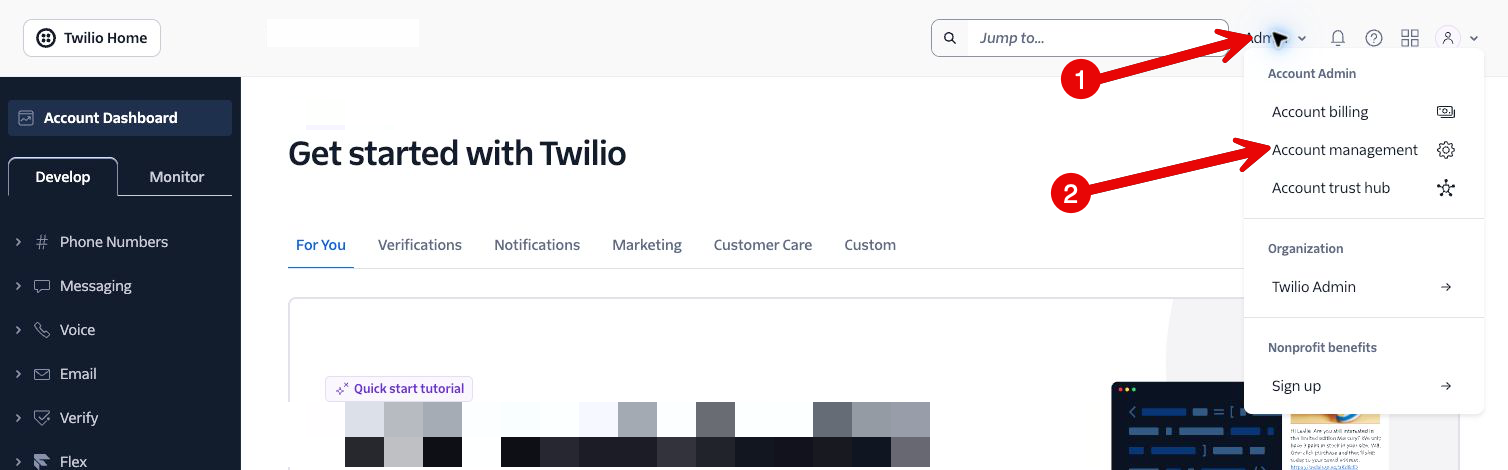
- On the left, find Keys & Credentials. Click API keys & tokens.
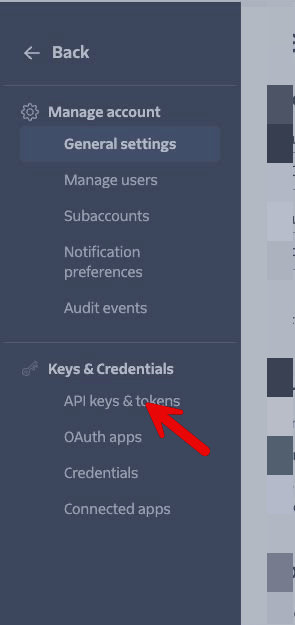
Try opening the older console’s API keys page directly. Twilio may ask you to sign in or enter an emailed verification code. Complete that in Twilio, then return here.
I see a gear on the left
- Click the small gear icon on the left to open Settings. If the sidebar shows icons only, hover over them to see their names.
- Click Account settings.
- Click API keys & auth tokens.
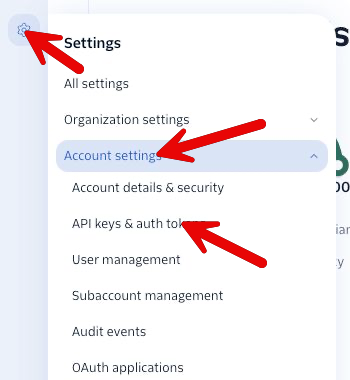
Checkpoint: you should now see a page about API keys. Select United States (US1). This is the connection region, even if you work in another country.
2. Set up browser calling
Complete the regular Twilio connection first. Keep the regular connection key. For this part, use the same Twilio account and create a separate Standard key and a TwiML App. A TwiML App is simply where you paste the two call instructions addresses below.
A. Create the separate browser key
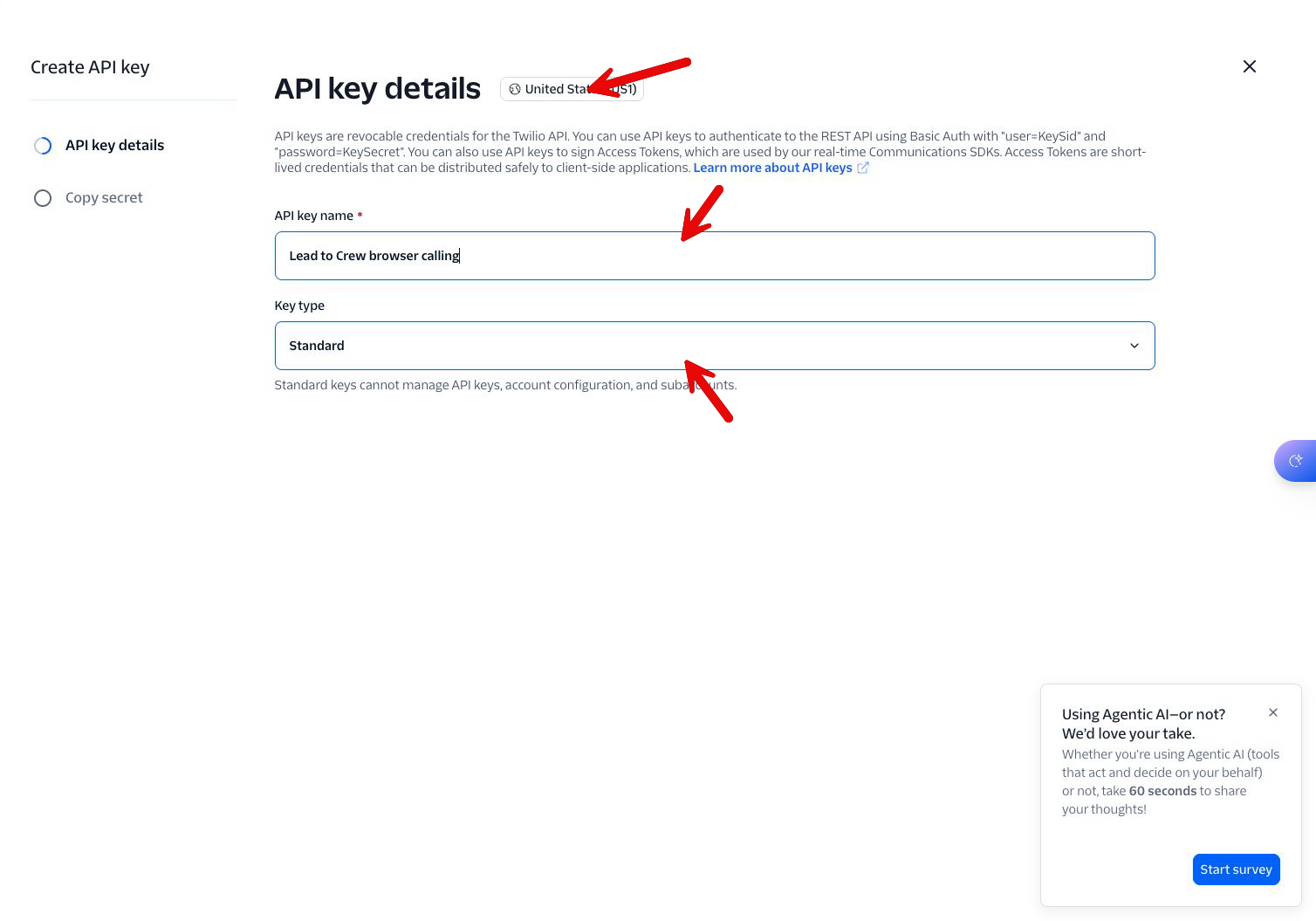
- Return to the API keys page in part 1 and click Create API key.
- Name it Lead to Crew browser calling.
- Choose Standard and United States (US1). Standard keys have broad account access; use this key only for this connection. Restricted keys do not work for browser call tokens.
- Finish the key creation flow and keep the secret page open.
- In Voice setup → Call from your browser, paste its SK value into Browser Standard API key SID and its secret into Browser API key secret. Leave the browser setup open while you create the app.
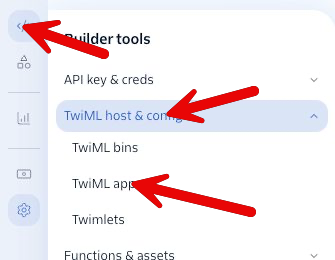
B. Open TwiML Apps
Newer console: click Builder tools (the angle-brackets/code icon on the left) → TwiML host & config → TwiML apps.
Older console: return to Account Dashboard, choose Develop on the left, expand Voice, then Manage → TwiML apps. Try opening the older console’s TwiML Apps page.
- Click Create TwiML App and name it Lead to Crew browser calling.
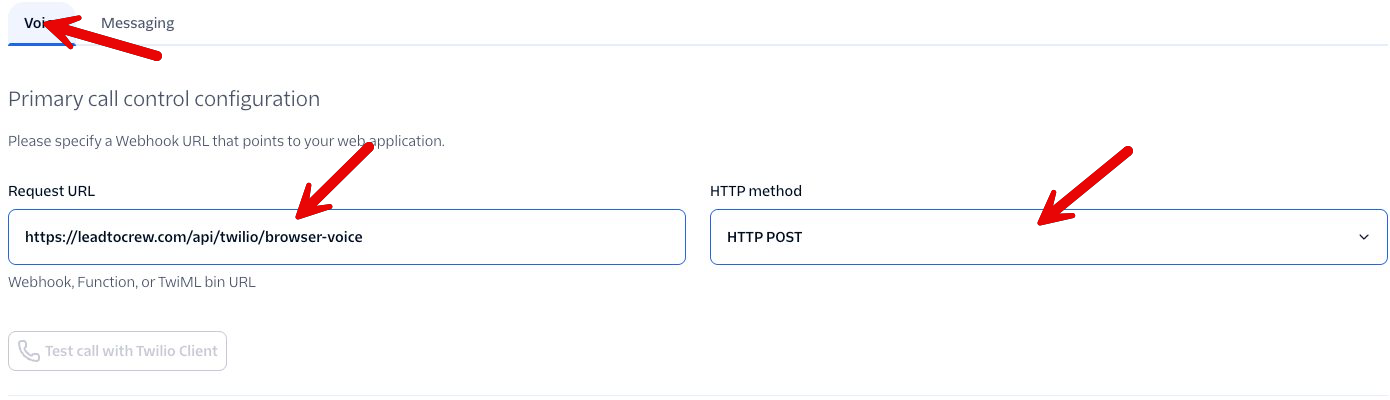
- In the newer console, create the named app, open it, then choose its Voice tab. Some older screens show the voice fields during creation.
- Find Request URL under Primary call control configuration (older label: Voice Request URL). Paste the first address below and choose HTTP POST.
Request URL: https://leadtocrew.com/api/twilio/browser-voice
- Scroll down to Status callback. Paste the second address into Status callback URL (older label: Call Status Changes). Choose HTTP POST there too.
Status callback URL: https://leadtocrew.com/api/twilio/browser-voice/status
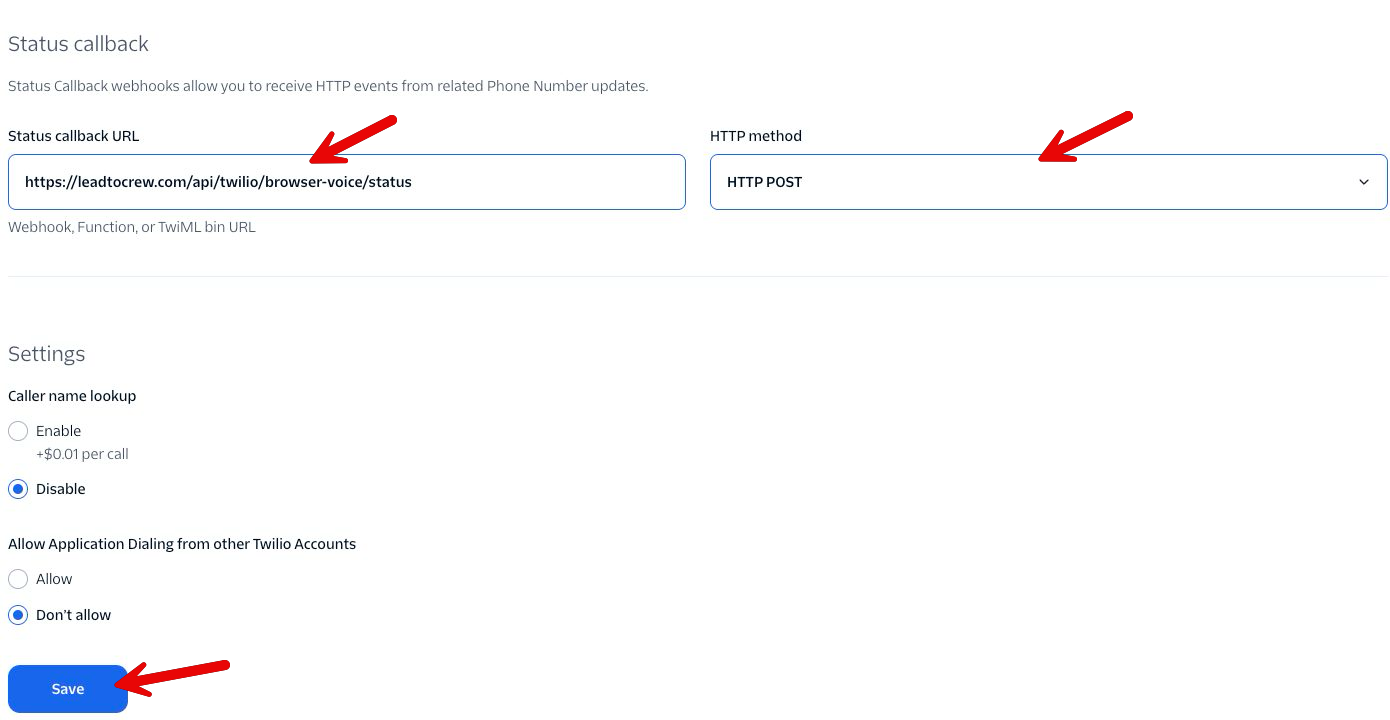
- Leave the fallback URL blank, caller name lookup disabled and cross-account application dialing set to Don’t allow. Click Save.
- Scroll back to the app name and copy its App SID. It begins with AP.
- Return to Lead to Crew’s Call from your browser section. Paste it into TwiML App SID. Check that the two browser-key fields contain the separate Standard key from step A.
- Click Save browser calling setup.
Checkpoint: Lead to Crew says Browser calling configured. Outbound browser setup does not require assigning this app to a phone number or changing incoming-call routing. Temporary receiving changes the selected number’s route only when you turn its receiving switch on. Recording is off for browser calls.
3. Try your headset
- Open Calls & texts. Choose your business number at the top.
- Choose Calls, then Use browser & headset.
- Enter the number of a person expecting your test call, then click Call from browser.
- Allow microphone access when your browser asks. If nothing happens, check the browser’s address bar for a waiting microphone permission prompt. Use your headset and keep this tab open.
- Confirm the business caller ID appears and both people can hear each other. End the call and refresh browser calls to check its result.
Optional: receive calls here temporarily
On Calls & texts, use Receive calls in this browser above the activity tabs. Choose a duration and turn it on. The selected number’s current normal route is saved before changing its incoming Voice settings. Keep this Voice page open; answer with your headset or decline to send the call to the normal flow. If you do not answer within about 10 seconds, the call continues to the normal flow. Turn receiving off to restore the saved settings. You can turn it off during an answered call without ending that conversation.
If your browser goes offline, new calls bypass it after about a minute. Existing SIP trunk routes or numbers without a normal incoming Voice webhook need separate setup. Outside changes in Twilio are preserved. Receiving adds Twilio incoming-call and browser usage charges, separate from your subscription.
Twilio charges for the browser connection and the outgoing phone call, separately from your Voice subscription. Your own mobile phone does not ring in browser mode. Test from the actual computer and network you will use, including when working outside the U.S.
If your screen looks different
I cannot find Settings
Look at the top-right for Admin. That is the older console. Follow Admin → Account management → Keys & Credentials → API keys & tokens. Settings is the gear on the left in the newer console.
Twilio asks for an email code
Open the email sent by Twilio, type the code directly into Twilio and click Verify. This is Twilio checking access to a sensitive account page.
I cannot find Create API key
Check that you are on the API keys tab, not Auth tokens, and in the right account. Your Twilio account role may need an owner or administrator to create credentials for you.
My key’s secret is missing
Twilio only shows a new secret once. If you no longer have it, create a separate replacement key, save it in the correct Lead to Crew form and verify it works before retiring the old key.
Browser calling is configured but the call fails
Allow microphone access, check your headset and internet connection, and verify both TwiML App URLs use POST. Use the Standard key, app and business number from the same account in US1. Check Twilio balance, destination-country calling permissions and trial restrictions.
Email support@leadtocrew.com with the step number and visible error. Never send API secrets or Auth Tokens. If you send a screenshot, cover credentials and every real phone number.
Actual Twilio screens checked November 12, 2026. Examples were captured without saving new credentials or changing routing. Private account information is obscured. Twilio’s API key documentation.
Need help?
If automatic setup fails, check the account details, your account access and the visible error. If a request timed out, check Twilio for a newly created Lead to Crew key/app before trying again. Contact support rather than repeatedly creating resources. Never send Auth Tokens or API secrets in support messages. Cover credentials and real phone numbers in screenshots.
Email support@leadtocrew.com.